
Use Kitbench as an app
You can install Kitbench as an app on your computer or phone. Then you can open a PDF or image straight from right-click or the Share menu, without looking for the tool in your browser. Free, no sign-up, and files still stay on your device.
What you can do
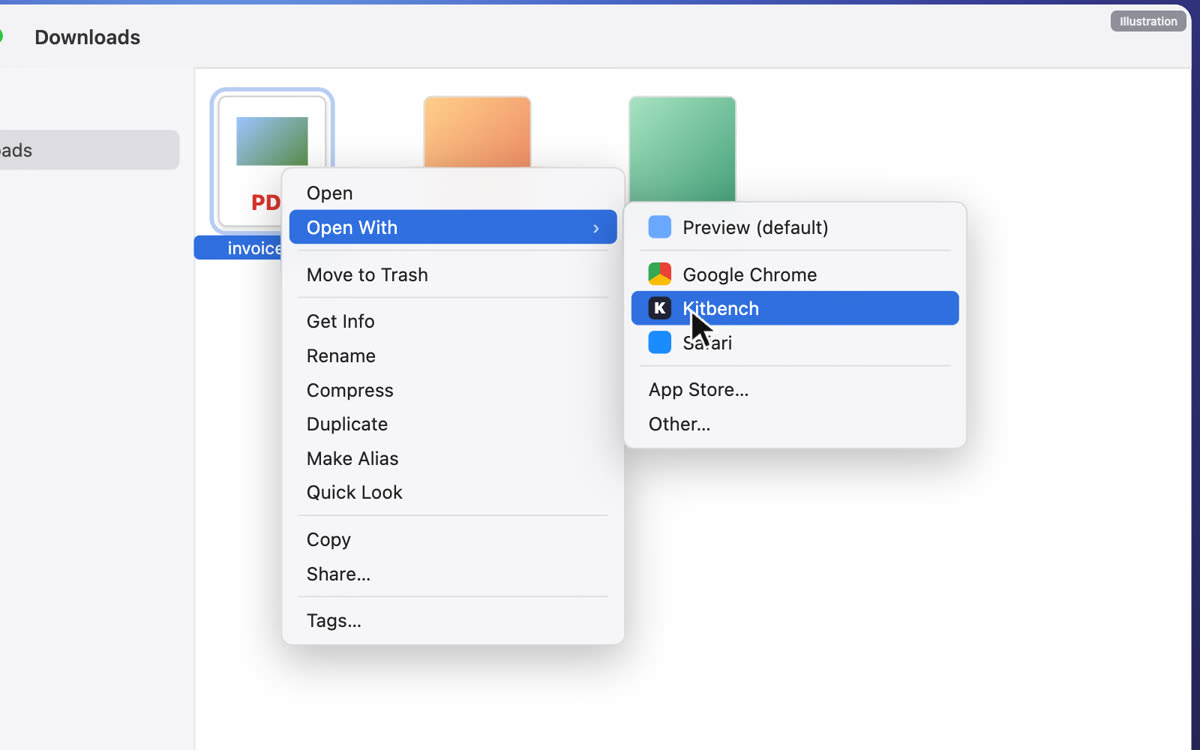
- Right-click a PDF or image → “Open With” (Mac) or “Open with” (Windows) → Kitbench, and the tool you pick opens with that file already loaded (compress, merge, split, convert to images and more)
- On Android, Kitbench appears in the Share menu for PDFs and photos
- Right-click (or long-press) the app icon to jump to the QR Code Generator, Compress PDF, Word Counter or Online Notepad
- It opens in its own window, so it doesn’t get lost among your tabs
Install on a computer (Mac or Windows) with Chrome or Edge
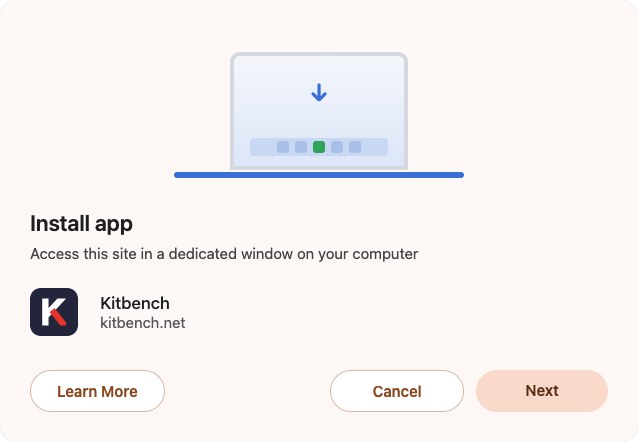
Click “Install” at the right of the address bar

In “Install app”, click “Next” (or “Install”)
Right-click a PDF → “Open With” → “Kitbench”
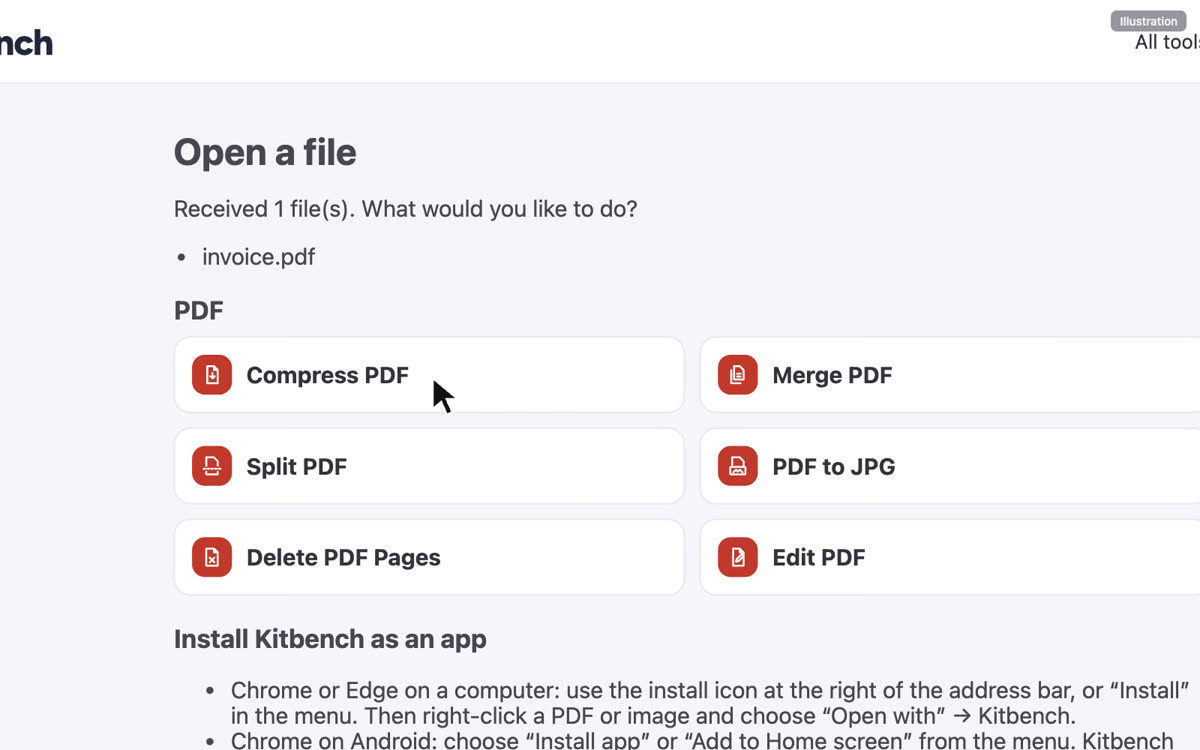
Choose what to do, and the tool opens with your file
If you don’t see the install icon, use “Install page as app…” in Chrome’s ⋮ menu. The first time you open a file, you may be asked to confirm.
Install on Android with Chrome
- Open Kitbench and choose “Install and create shortcut” → “Install” from the menu
- Open a PDF or photo, tap “Share” and choose “Kitbench”
- Choose what to do
iPhone and iPad
Use “Add to Home Screen” from Safari’s Share menu to open Kitbench from an icon. Apple doesn’t let web apps receive files from the Share menu.
FAQ
Does it cost anything?
No. Installing and using it are free, with no sign-up.
Are my files sent anywhere?
No. Files you open or share with Kitbench stay on your device, as before.
How do I remove it?
Choose “Uninstall Kitbench” from the menu at the top right of the app window. You can keep using Kitbench in your browser.
What about Safari or Firefox?
On a Mac, Safari can add Kitbench with File → Add to Dock, but opening files with right-click doesn’t work there. Firefox can’t install web apps on computers.